 SizeFit
How to send iPhone ProRes and Apple Log video (without the grey look)
iPhone 15 Pro and later record ProRes and Apple Log — superb for editing, awkward for sending. The files are enormous, and Log footage looks flat and grey to anyone who opens it as it is.
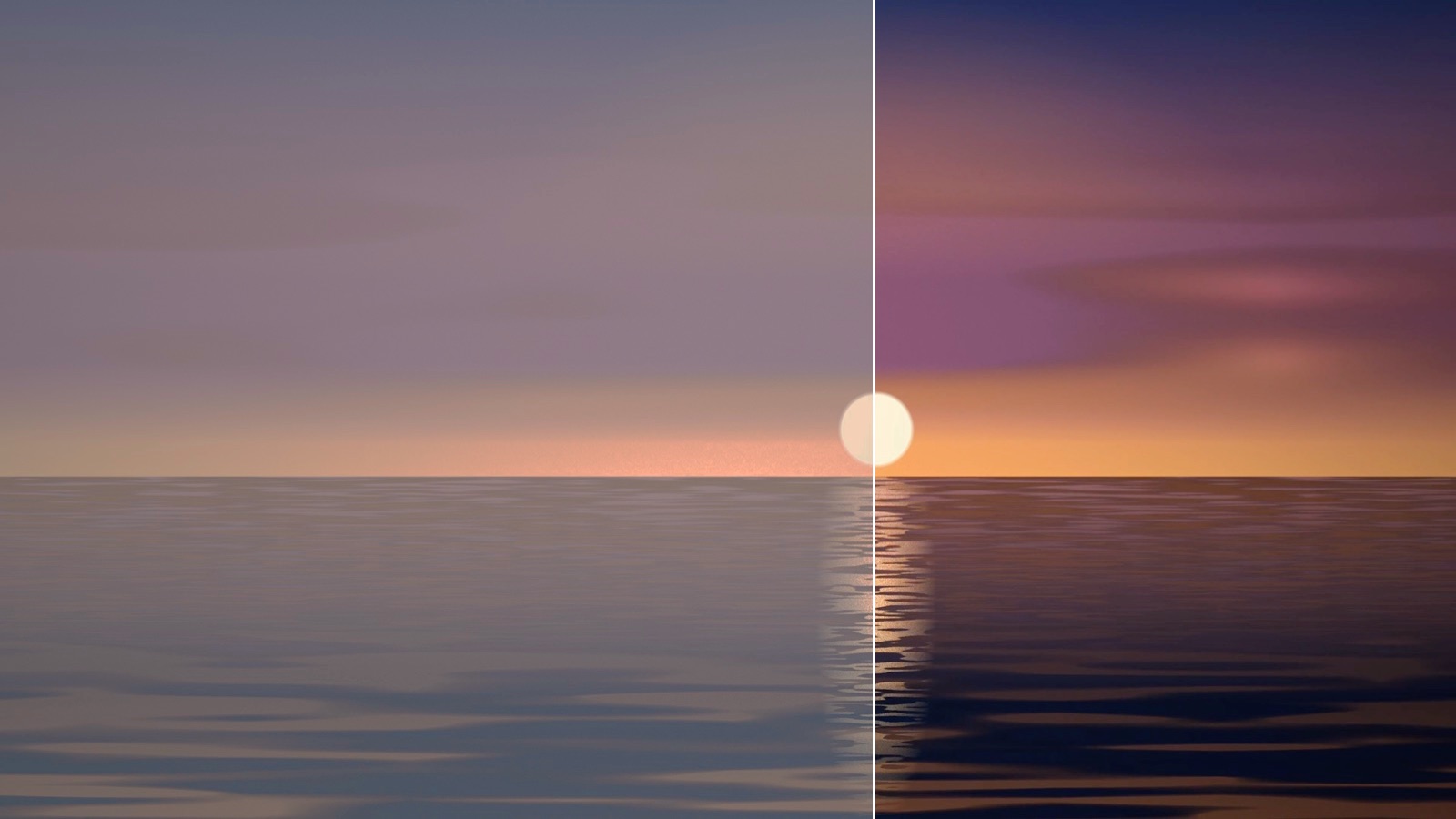
Why ProRes files are so big
ProRes is an editing format: it keeps nearly everything in every frame so the picture survives grading and effects. Apple says ProRes files are up to 30 times larger than HEVC, the format the Camera app uses by default. In our test, 12 seconds of 4K ProRes 422 HQ came to 1.21 GB — roughly 6 GB a minute, against a 25 MB email limit.
Why Apple Log looks grey
Log footage stores the sensor’s full range of light on a gentle logarithmic curve, so highlights and shadows can be pulled back later. It’s meant to be converted before anyone watches it. A player that shows the log signal as it is gives you low contrast, milky blacks and washed-out color. iPhone 17 Pro adds Apple Log 2, the same curve on a wider gamut (Apple Wide Gamut), which looks just as flat until it’s converted.
Three ways to send it
1. Grade it in an editor, then export
In Final Cut Pro, DaVinci Resolve or another editor, apply a Log-to-Rec.709 conversion (or your own grade), then export H.264 at a bitrate that fits your limit. Best for creative control; slowest if you only want to send a clip.
2. Record in HEVC when you know you’ll share it
Turn ProRes and Log off in Settings › Camera › Formats for clips that are just for sending. You can’t change your mind after recording, though.
3. Let SizeFit do both steps
- Drop the clip into SizeFit on Mac, or pick it from Photos on iPhone or iPad.
- Choose where it’s going — Gmail, Discord, WhatsApp or an upload form.
- SizeFit reads the format from the file, converts Apple Log or Apple Log 2 to standard Rec.709 color, compresses to an MP4 that fits, then plays the result back and checks it.
In our test the 1.21 GB Apple Log clip became a 17.2 MB 4K MP4 for Gmail in 11 seconds on an M1 Mac, with all nine checks passed.
| Footage | What you get |
|---|---|
| ProRes 422 / 422 HQ | A standard H.264 MP4 under your limit |
| Apple Log (iPhone 15 Pro and later) | Converted to Rec.709, then compressed |
| Apple Log 2 (iPhone 17 Pro) | Apple Wide Gamut converted to Rec.709, then compressed |
| HDR (HLG, Dolby Vision) | Converted to standard dynamic range, then compressed |
| ProRes RAW | Not supported yet |
The conversion is a neutral Rec.709 transform, like a camera’s built-in look — it makes the clip look the way it did in the viewfinder, not graded. For a creative look, grade it first and give SizeFit the export.
FAQ
Will the person I send it to need anything special?
No. The result is an ordinary MP4 (H.264 video, AAC sound) in standard color, which plays on Windows, Android and in browsers.
Does SizeFit change my original ProRes file?
Never. The original is opened read-only; the slip even confirms its size and date are unchanged.
Can I keep it in Log or HDR?
Not when sending: SizeFit always delivers standard color, because most phones, PCs and web forms show log and HDR footage wrong. Keep the original for editing.
Send pro footage in one step
SizeFit converts Apple Log to standard color, shrinks ProRes to fit email or chat, and proves the result still plays — sound, picture and length.